Requirements
Please ensure that you have a HubSpot account to use this theme. If not, you can visit this link to create a HubSpot account.
Create a HubSpot account
Templates
ConvertHub is designed to enhance your user experience with a comprehensive set of templates. To save you time and make it easier to build key pages on your site, we have prepared several layout options for template blocks, including the home page, product page, about us, contact, thank you page. The order of the blocks in each of the template pages below will ensure a clear and consistent delivery of product information to your customers.
-
Home page
-
Product page
-
About Us
-
Contacts
-
Thank you page
1. Home page
A Home page is typically the main landing page that introduces the brand, captures visitor attention, and guides users toward their goals.
It generally includes a prominent H2 heading or headline, a clear statement of what the company does, and key information organized into blocks or sections for easy scanning. Blocks on a Home page often feature key products or services, value propositions, calls to action, and visual elements like images or sliders to engage visitors. This layout helps companies quickly convey identity, showcase offerings, and facilitate navigation to other parts of the site.
The Home page is used to:
-
Present the company’s identity and core message clearly and immediately
-
Highlight primary features, benefits, or offers
-
Encourage visitors to take specific actions (shop, sign up, contact, etc.)
-
Provide easy access to other important sections or pages
-
Build trust and brand recognition through consistent visuals and messaging
Blocks on the Home page are typically arranged logically: a strong headline and hero section at the top, followed by feature or benefits blocks, social proof or partner logos, and calls to action distributed to lead users through the experience smoothly. Visual contrast and clear hierarchy support engagement and usability.
You can see an example of the Home page below. Our designers constructed the pages from blocks that you can find in the Modules Library.

2. Product page
A Product page is a dedicated webpage designed to provide comprehensive details about a specific product to help potential customers make informed purchase decisions. Companies use it to showcase product features, specifications, pricing, images, and benefits that clearly communicate the product’s value and usage.
Typical information on a Product page includes:
-
A clear product title and descriptive overview
-
High-quality images or videos showing the product from multiple angles
-
Detailed product specifications and features
-
Pricing information and availability
-
Customer reviews and ratings to build trust
-
Frequently asked questions (FAQs) about the product
-
Related products or recommendations for cross-selling
Blocks on a Product page are typically arranged in a user-friendly layout that starts with a prominent product name and visuals at the top, followed by key features and specifications, pricing and purchasing options, then social proof like reviews, and finally additional details like FAQs or useful materials (articles , ebooks, one-pagers, presentations).
You can see an example of the Product page below. Our designers constructed the pages from blocks that you can find in the Modules Library.
.png?width=3007&height=14239&name=Desktop%201920px%20(3).png)
3. About Us
The About Us page is a dedicated section of a company’s website that introduces the organization, shares its story, values, mission, and vision to build trust and connect with visitors on a personal level. Companies use this page to communicate their background, culture, and what sets them apart from competitors.
Blocks on the About Us page are usually arranged to tell a cohesive story: starting with the company’s introduction and mission, followed by team or leadership sections, then milestones or achievements, and ending with testimonials or contact prompts. This structured flow helps engage visitors by providing transparency and fostering a sense of connection.
Overall, the About Us page serves as a vital component in humanizing the brand, establishing credibility, and encouraging deeper engagement with the company.
You can see an example of the About Us page below. Our designers constructed the pages from blocks that you can find in the Modules Library.
.png?width=2880&height=11569&name=Desktop%201920px%20(4).png)
4. Contacts
The Contacts page is created to offer visitors straightforward and convenient ways to reach the organization. Businesses use this page to enable communication, provide support, and display essential contact information.
Common elements found on a Contacts page include:
-
Various contact options such as phone numbers, email addresses, and physical locations
-
A contact form for sending messages or inquiries directly
-
Business hours or expected response times
-
An interactive map showing the company’s location(s)
-
Links or icons directing to social media profiles
The layout of the Contacts page often begins with a headline and basic contact details at the top or side, followed by a centrally positioned contact form for easy access. An interactive map is usually placed below or beside the form to help visitors visually locate the business. Social media icons and extra contact information are often grouped together to make all communication channels clearly visible.
You can see an example of the Contacts page below. Our designers constructed the pages from blocks that you can find in the Modules Library.
.png?width=3007&height=4206&name=Desktop%201920px%20(5).png)
5. Thank you page
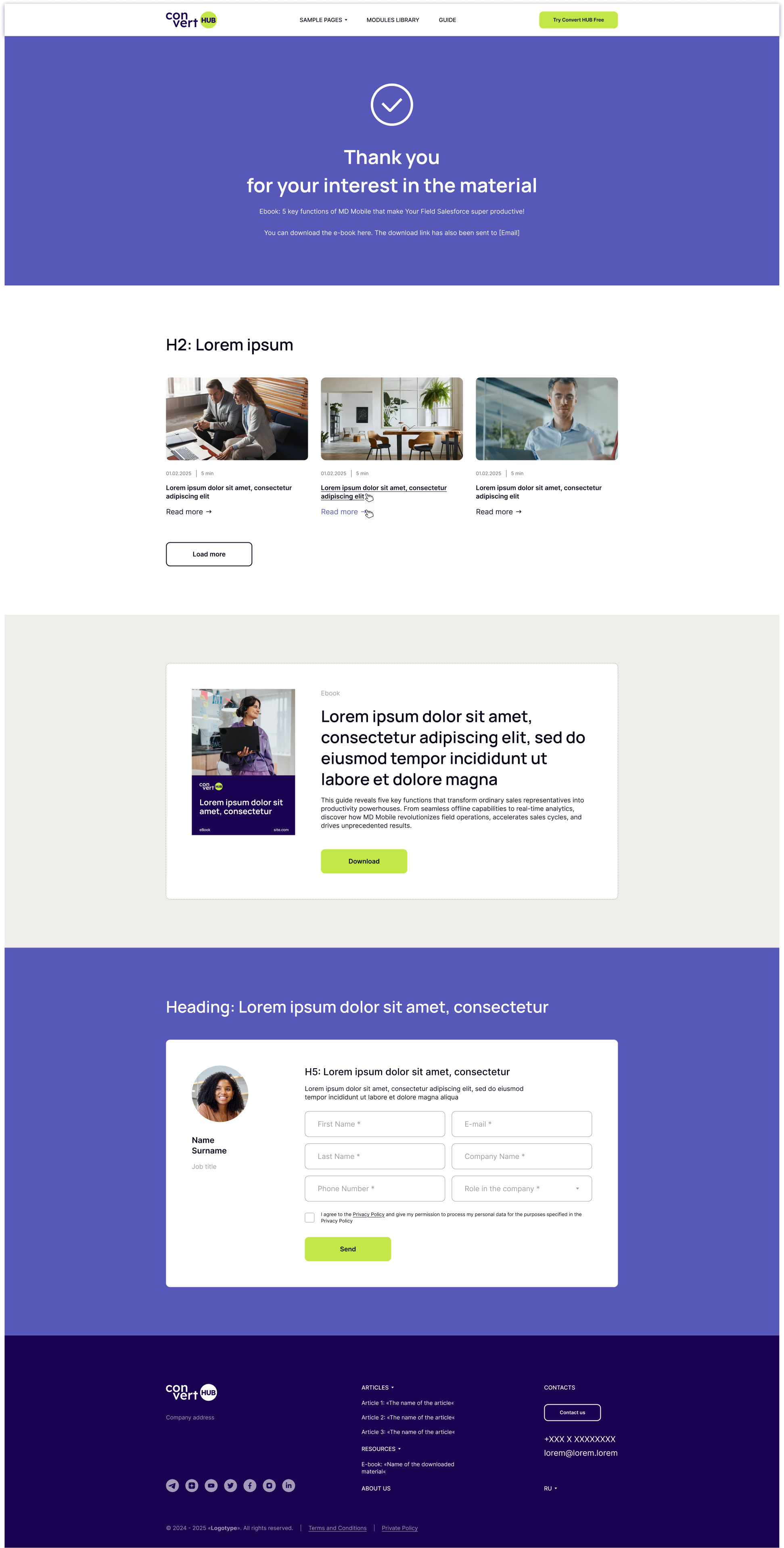
A Thank you page is a special web page that is displayed after a visitor has completed a desired action, such as filling out a form, making a purchase, or signing up. Companies use this page to acknowledge user interaction, express gratitude, and provide next steps or additional information to maintain user interest.
Thank you page blocks typically have a simple, clear structure, starting with a thank you header at the top, followed by a confirmation and next steps information. Calls to action and additional links are placed below to guide users to further interaction without overwhelming them.
You can see an example of the Thank you page below. Our designers constructed the pages from blocks that you can find in the Modules Library.
Modules
-
Menu
-
Hero 01
-
Hero 02
-
Title
-
Image + Text 01
-
Image + Text 02
-
Image + Text 03
-
Text
-
Text + Icon
-
Text + Button
-
Text + Images Slider
-
Text + Cards Slider 01
-
Text + Cards Slider 02
-
Text + Numbers Cards
-
Product Features
-
Points + Image
-
Accordion Module
-
Downloadable material 01
-
Logo Slider
-
Team Cards + Button
-
Blog Posts List
-
Steps Line
-
Timeline
-
Pop-up Form
-
Map
-
Footer
1. Menu
This block is designed to display the product’s Logo, the main navigation menu with dropdown links, and a prominent call-to-action (CTA) button. It serves as the primary navigation header on the page.
You can find out more about the module here.

2. Hero 01
This block is designed to accommodate the technical name of the product (Text), a slogan or tagline (H1), a call to action (CTA), and a button with an embedded link. Typically, it will be the first one on the landing page. If necessary, you can add a second button with the ability to embed a link.
You can find out more about the module here.
.png?width=2880&height=1047&name=1%20screen%20-%20Hero%20(template%202).png)
3. Hero 02
This block is designed to accommodate the technical name of the product (Text), a slogan or tagline (H1), a call to action (CTA), and a button with an embedded link. Typically, it will be the first one on the landing page. If necessary, you can add a second button with the ability to embed a link.
You can find out more about the module here.
.png?width=2881&height=1142&name=1%20screen%20-%20Hero%20(template%201).png)
4. Title
This Title block is designed to showcase the main headline or title (H1) that captures the visitor’s attention immediately upon landing on the page.
You can find out more about the module here.
.png?width=2880&height=287&name=1%20screen%20-%20Hero%20(template%204).png)
5. Image + Text 01
This block is designed to present a balanced combination of visual and textual content side by side, making it ideal for showcasing products, services, or key messages with supporting imagery.
On one side, you can place a photo, illustration, or graphic that visually represents your offering or theme, helping to capture attention and create an emotional connection with the audience.
On the opposite side, there is space for a heading (such as H2) to introduce the topic or highlight a main idea, accompanied by one or two short paragraphs of descriptive text that provide further explanation, benefits, or context.
You can find out more about the module here.
.png?width=2880&height=857&name=Text%20+%20Img%20(template%203).png)
6. Image + Text 02
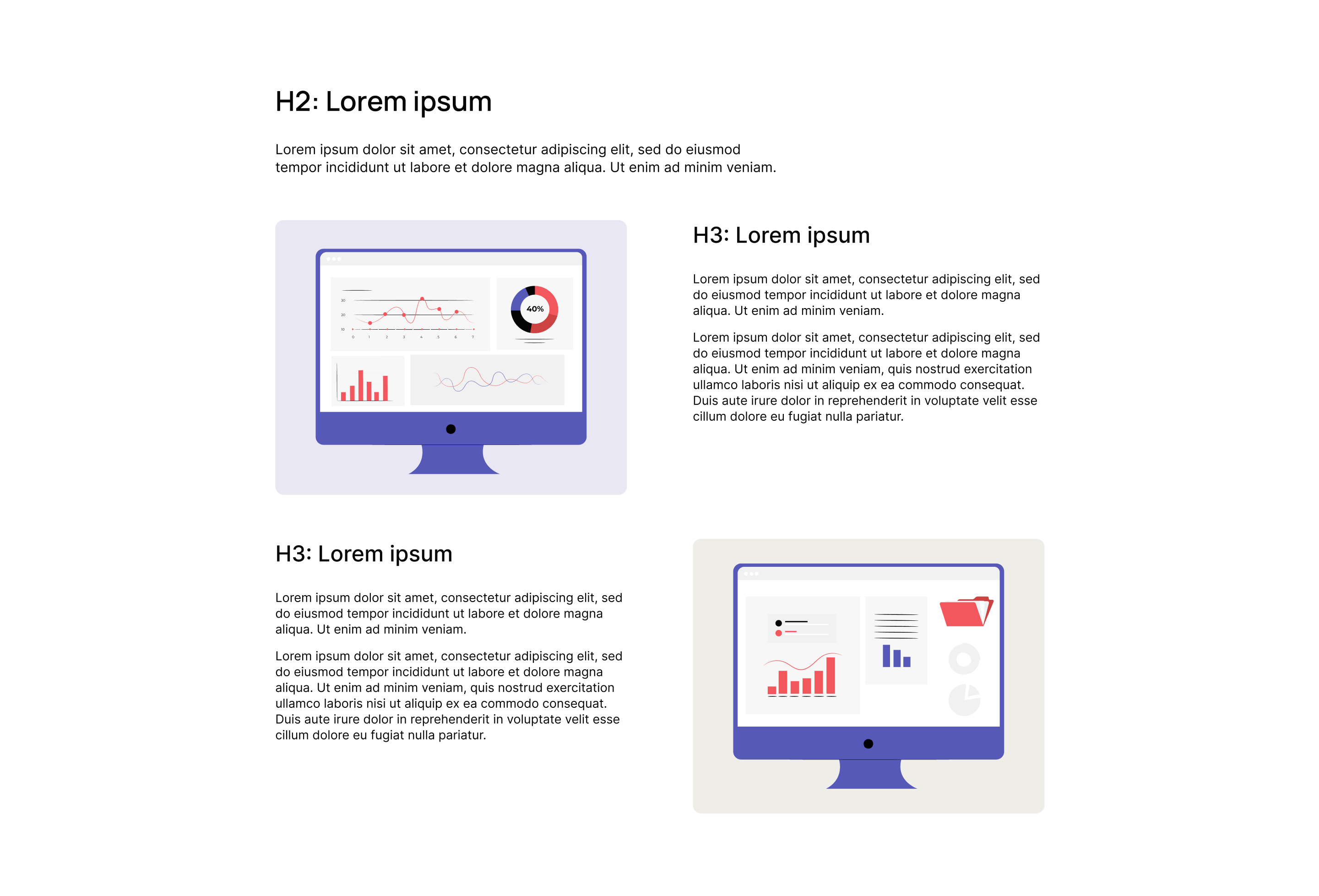
This module is designed to offer a dynamic and visually engaging two-section layout with alternating image and text positions.
First of all, the block contains a place for the title (H2) and a short description. Below, first section features an image on the left side paired with a heading (H3) and explanatory text on the right. The second section flips the layout, placing the image on the right with a heading (H3) and text on the left. This alternating pattern creates balance and keeps the viewer’s interest as they scroll.
You can find out more about the module here.
7. Text
This block is designed to prominently display a secondary-level heading (H2) followed by a paragraph or two of descriptive text. It is ideal for introducing key topics, elaborating on important points, or providing clear explanations that support the main message on a webpage.
You can find out more about the module here.
.png?width=2880&height=753&name=Text%20(template%202).png)
8. Text + Icon
This template combines an icon, a secondary-level heading (H2), and descriptive text in a compact, visually appealing layout. This block is ideal for creating a "Thank You" page for a customer filling out a form or uploading a downloadable material.
You can find out more about the module here.

9. Text + Button
This block offers a two-column layout ideal for presenting a headline and introductory text on the left, paired with additional supporting information and a clear call-to-action button on the right. The left column features an H2 heading and descriptive text to introduce a topic, product, or service, establishing context and capturing interest.
The right column provides space for two paragraphs of detailed explanatory or persuasive content, which can elaborate benefits, features, or next steps, followed by a prominent button designed to drive user interaction—such as signing up, requesting a demo, or making a purchase.
You can find out more about the module here.

10. Text + Images Slider
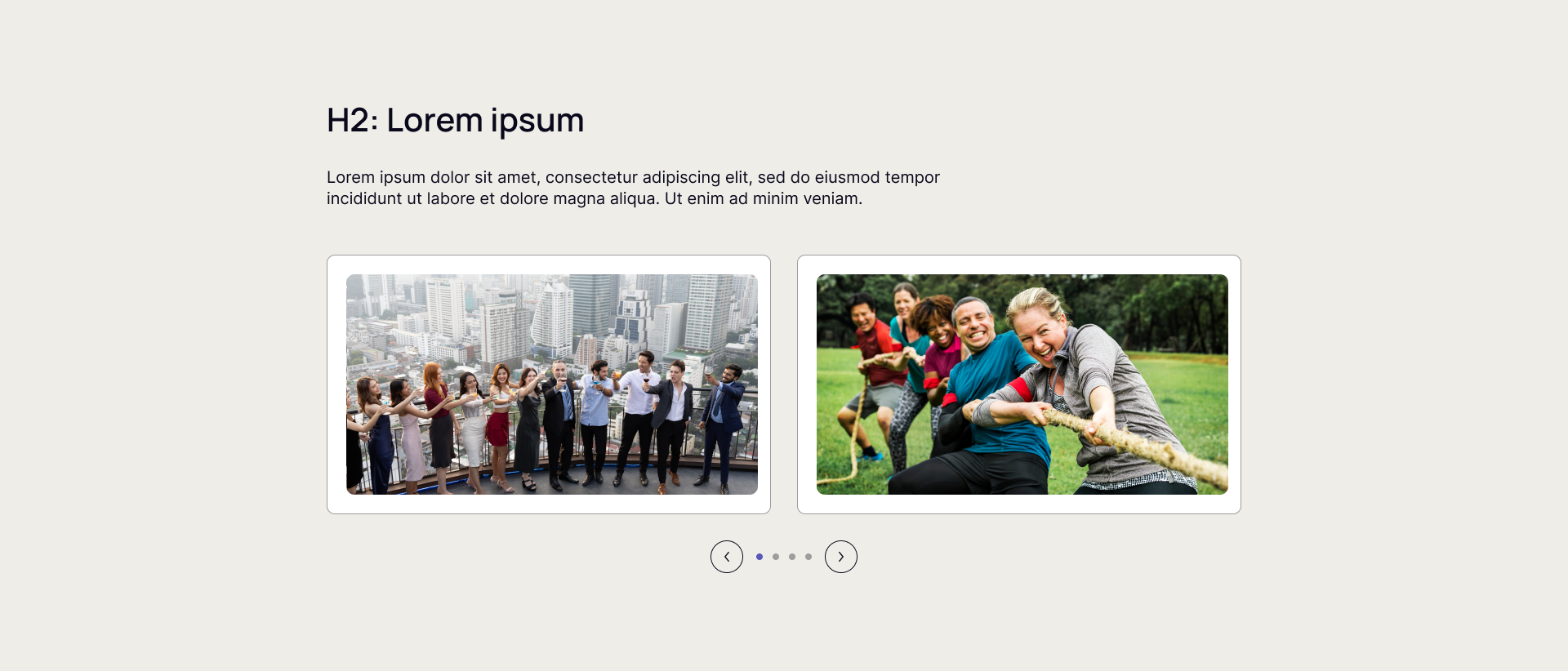
This template combines a headline (H2) and descriptive text with an interactive image slider below. The slider displays two images at a time and includes navigation buttons for users to scroll through additional pictures. This layout is perfect for visually showcasing multiple items, features, projects, or examples while providing context and explanations above.
You can find out more about the module here.
11. Text + Cards Slider
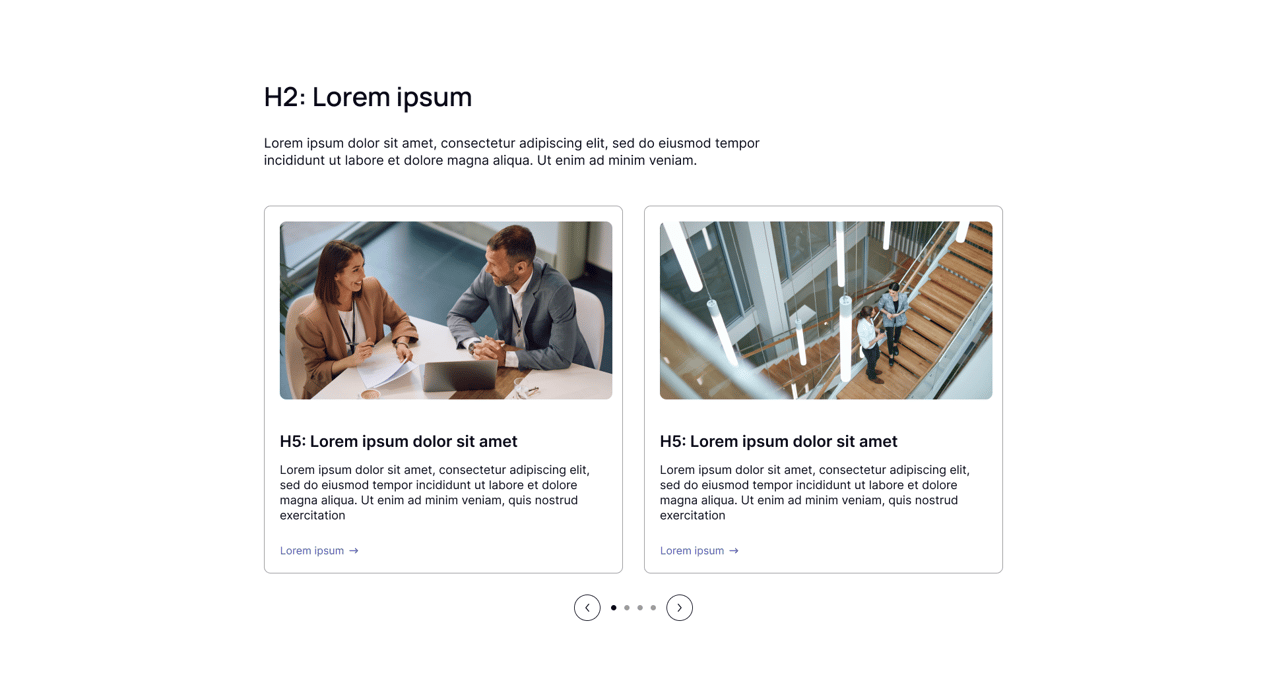
This template features a main headline (H2) and descriptive text followed by three cards arranged horizontally. Each card includes an icon at the top to visually represent the topic, an H5 heading to introduce the specific feature or point, a brief description to provide details, and a button to prompt user action.
Users can utilize this template to clearly present multiple related offerings, features, services, or benefits in a concise, well-organized format.
You can find out more about the module here.
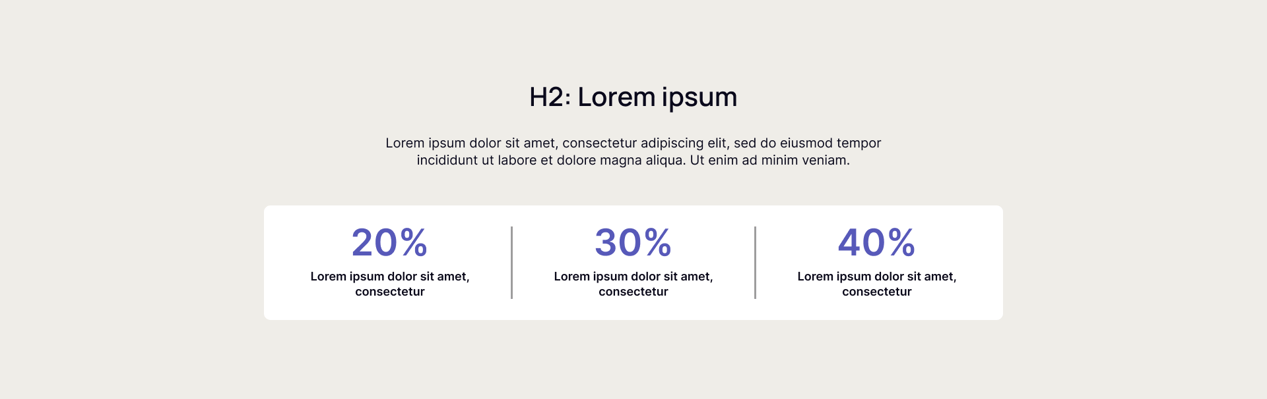
12. Text + Numbers Cards
This template includes a main headline (H2) and descriptive text, followed by a customizable grid of tiles where you can control the number of sections displayed. Each tile prominently features a striking number, ideal for showcasing key statistics, metrics, milestones, or achievements, with a brief explanatory text underneath to clarify the significance of the number.
Users can leverage this template to effectively highlight important quantitative data that supports their message, creating visual impact and building credibility. It's perfect for presenting business performance indicators, growth figures, customer counts, project accomplishments, or market insights in an engaging and easy-to-digest format.
You can find out more about the module here.
13. Product Features
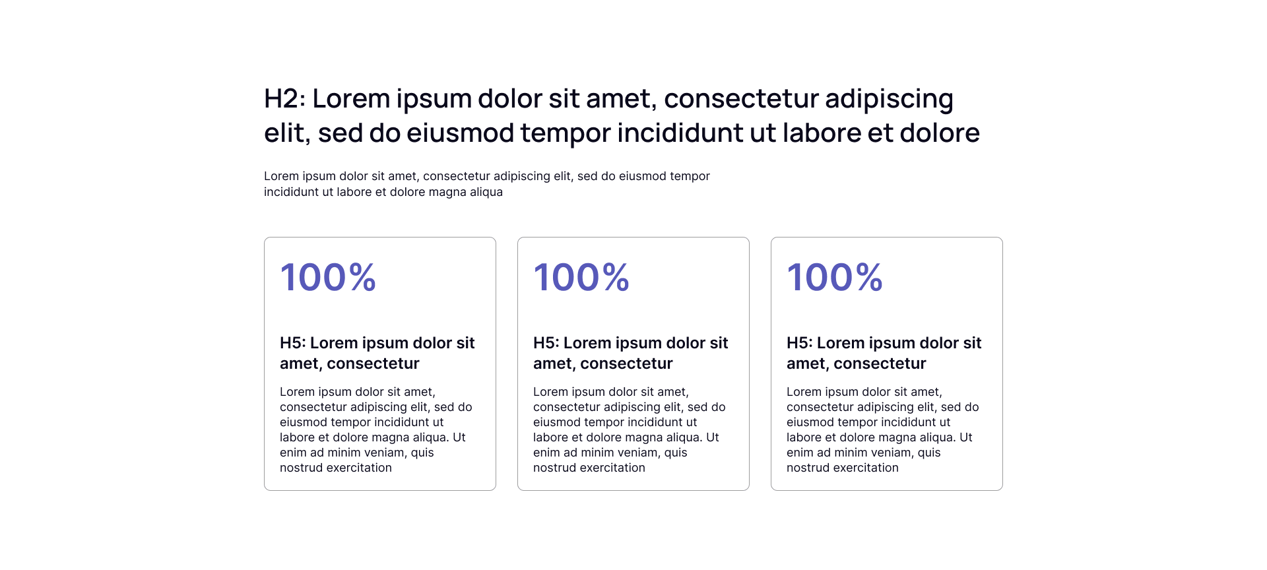
This template includes a prominent headline (H2) and a descriptive paragraph, followed by three cards arranged below. Each card features an icon at the top, an H5 heading to highlight a specific feature or capability, and a concise paragraph explaining that feature.
Users can use this template to clearly and attractively present key capabilities of a company, product, or tools. The combination of icons and structured text makes it easy for visitors to quickly grasp important functionalities or advantages offered.
You can find out more about the module here.
14. Points + Image
This block features a main headline (H2) at the top, with three cards aligned on the left side. Each card includes an H5 heading paired with a brief descriptive text, while the right side of the block displays a large supporting image.
Users can apply this template to present multiple related points, features, or benefits in a structured and visually distinctive way, using the vertical strips to organize information clearly and the image to reinforce or exemplify the content.
You can find out more about the module here.

15. Accordion Module
This template includes a main headline (H2) and a descriptive paragraph, followed by a list of items. Each item features an icon on the left, an H5 heading, and a brief descriptive text that can be expanded to reveal more detailed information. At the bottom of the block, there is a button designed to encourage further action.
It can be used to effectively present product functionality, key features, or frequently asked questions (FAQs). The expandable items enable users to explore details at their own pace without overwhelming the layout, while icons and headings make scanning easy.
You can find out more about the module here.
.png?width=2880&height=2135&name=Accordion%20(template%201).png)
16. Downloadable material
This block features a layout with the right side containing a headline (H2), a descriptive paragraph, and a call-to-action button, while the left side is reserved for an image representing the cover of downloadable material such as an eBook, report, whitepaper, or brochure.
The button typically links to the download or a form to access the content.
You can find out more about the module here.
.png?width=2881&height=1238&name=CM%20(template%201).png)
17. Logo Slider
This block includes a headline (H2) followed by a slider showcasing multiple logos. It is designed to visually display brand associations, partners, clients, or certifications in a compact, interactive format.
You can find out more about the module here.

18. Team Cards + Button
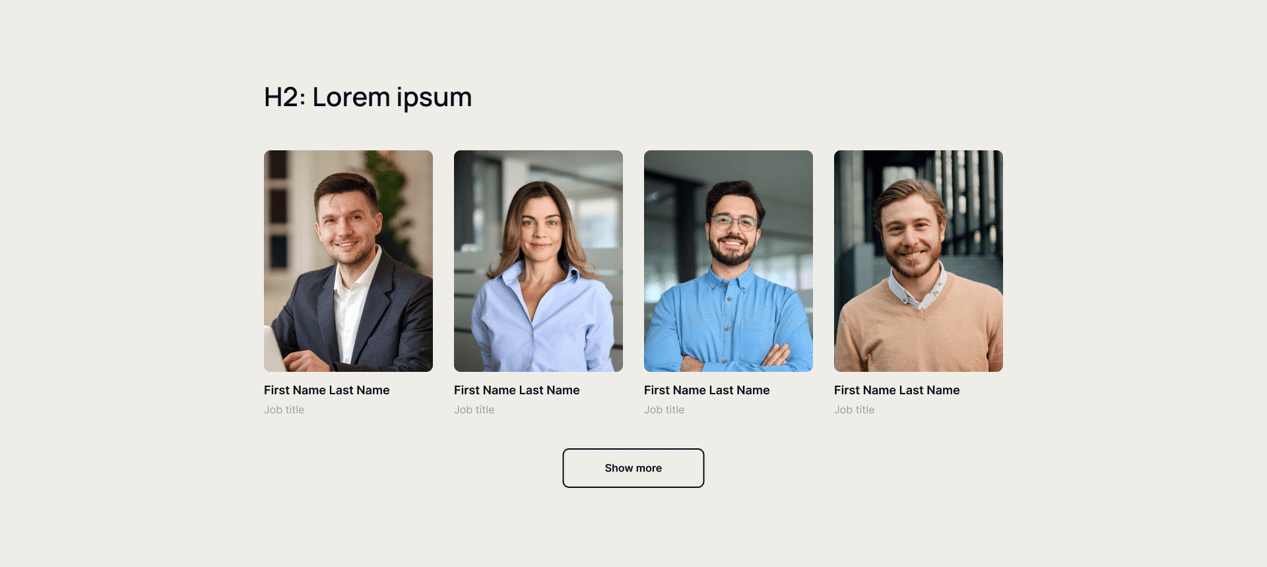
This template features a headline (H2) followed by images of team members or employees, each accompanied by their full name and job title. Below the team section, there is a button designed to encourage further action, such as contacting the team or viewing more about the company.
It is ideal for presenting company leadership, departments, or project teams in a professional and approachable way.
You can find out more about the module here.
19. Blog Posts List
This block features a headline (H2) followed by a row of three article cover images. Under each cover, there is the publication date or time, the article title, and a call-to-action button encouraging visitors to read the full article. At the bottom of the block, an additional button invites users to view more articles.
Users can utilize this template to showcase recent blog posts, news updates, or featured content on their website in a visually appealing and easy-to-navigate format.
You can find out more about the module here.

20. Steps Line
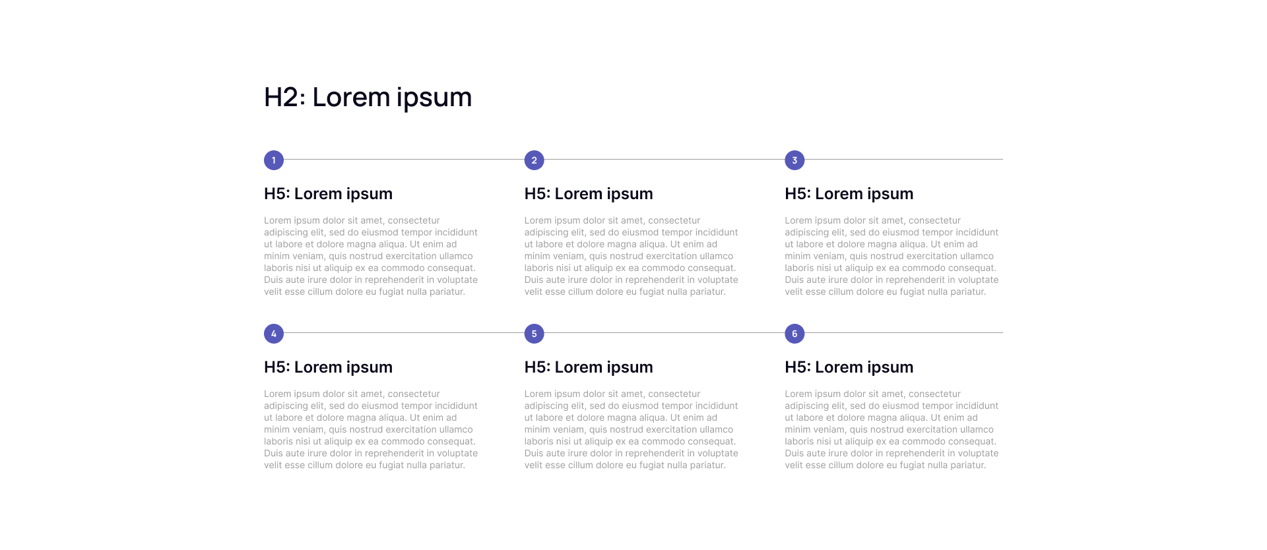
This template features a main headline (H2) followed by six text blocks displayed in a grid of two rows and three columns. Each block includes a subheading (H5), descriptive text, and a prominent number signifying the step or stage in a process or sequence.
Users can use this template to clearly illustrate workflows, step-by-step guides, project phases, or any multi-stage processes where organizing information in numbered increments helps guide the audience’s understanding.
You can find out more about the module here.
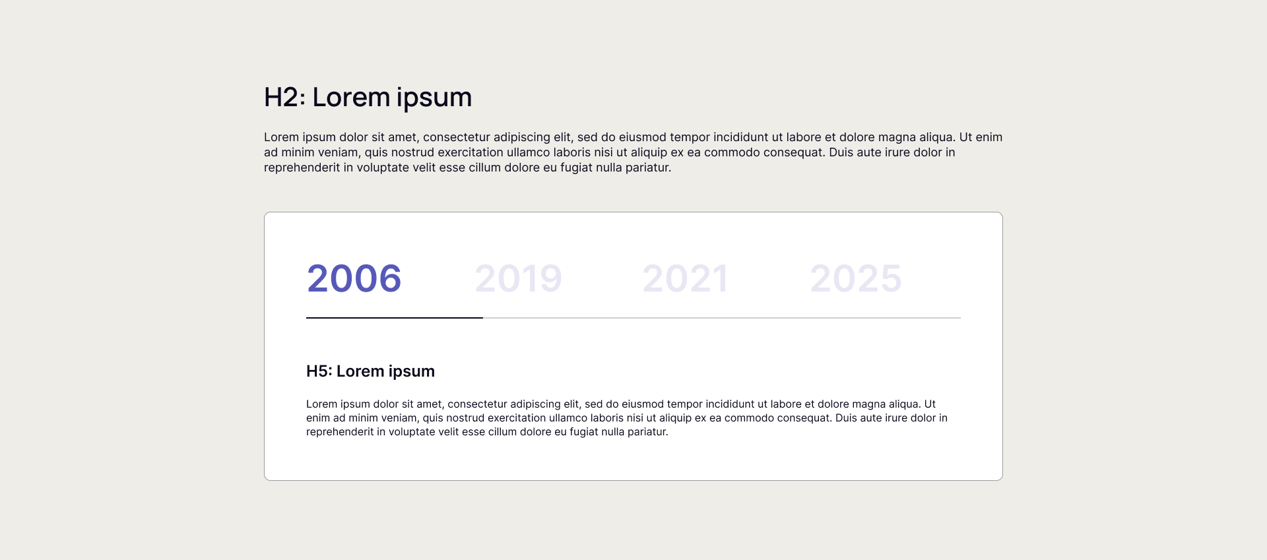
21. Timeline
This block includes a main headline (H2) and a descriptive paragraph above a tabbed section that allows users to switch between different content blocks organized by year. Each tab prominently displays the year as a large label, and inside each tab, there is an H5 heading alongside a paragraph of text describing achievements, milestones, or developments for that year.
Users can leverage this template to effectively showcase the company’s or product’s progress, growth, and key moments over time in an engaging, chronological way.
You can find out more about the module here.
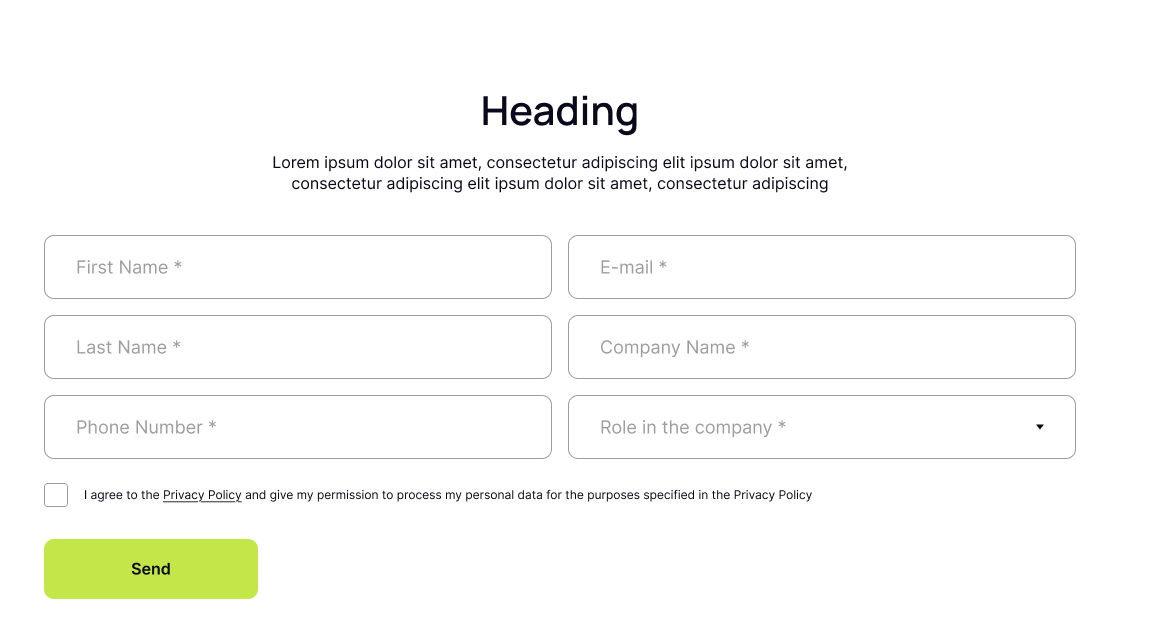
22. Pop-up Form
This popup features a main headline (H2) followed by a smaller subheading (H5) and descriptive text to introduce the purpose of the form. It also includes a photo of an employee along with their name and role, adding a personal and trustworthy touch. Below this, users find a form to fill out and a clearly visible submit button.
You can find out more about the module here.
23. Map
This block features a main headline (H2) aligned to the left and a list of contact details on the right, including phone numbers, email addresses, physical addresses, and social media icons linking to the organization’s profiles. Below these elements is an interactive map where the business owner can pinpoint the location of their main office and any branch locations.
Users can utilize this template to provide comprehensive contact information and visually showcase their company’s geographic presence. The interactive map helps visitors easily locate offices or stores, enhancing user experience and trust.
You can find out more about the module here.
.png?width=2881&height=1513&name=Map%20(template%201).png)
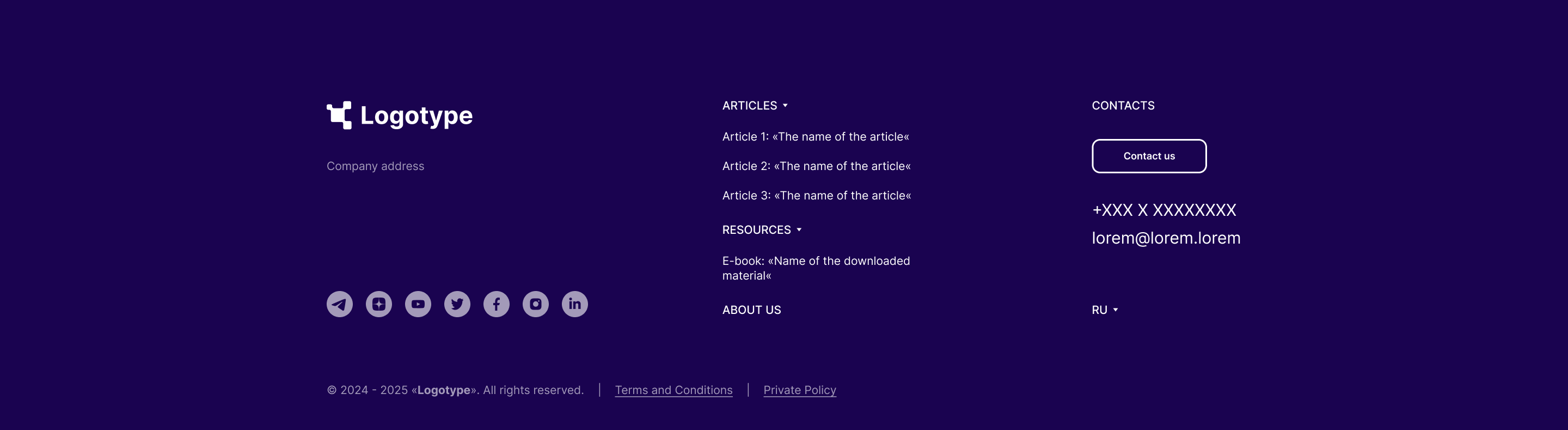
24. Footer
This footer provides a well-organized area at the bottom of the website that includes a spot for the company logo, icons linking to social media profiles, a navigation menu for important site pages, and key contact information such as phone number, email, and address.
You can find out more about the module here.
System Pages
1. 404 page
The 404 page is a dedicated error page that appears when a visitor tries to access a URL that does not exist or is broken. Companies use this page to clearly inform users that the requested page cannot be found, preventing frustration and helping them recover smoothly.
Blocks on a 404 page are generally arranged with the error label and message prominently displayed, accompanied by clear calls to action to guide users away from the dead end. Navigation menus or key links are placed accessibly, and any visuals balance clarity with a welcoming tone.
You can see an example of the 400 page below.
.png?width=3007&height=1987&name=Desktop%201920px%20(6).png)
2. 500 page
The 500 page is a special error page displayed when a server encounters an unexpected condition that prevents it from fulfilling a request, commonly known as an Internal Server Error. Companies use this page to inform users that something has gone wrong on the server side and to provide guidance on how to proceed.
You can see an example of the 500 page below.
.png?width=3007&height=1987&name=Desktop%201920px%20(7).png)
FAQ
Q1: How do I install an app from the HubSpot Marketplace?
Log in to your HubSpot account, navigate to the Marketplace, find your desired app, and click "Install." Follow the on-screen prompts to complete the setup.*
Q2: Do I need admin permissions to install an app?
Yes, you typically need Super Admin or appropriate permissions in HubSpot to install and configure Marketplace apps.
Q3: Why can’t I see the app after installation?
Check your user permissions and ensure the app is enabled in the correct portal. Some apps may require manual activation in settings.
Contacts and Support
Wish to achieve customer engagement and increase lead flow?
Download the template and use the tips from our designers!